Connectivity in Ultrawide Monitors: What It Is and Is It Worth It?
As an Amazon Associate we earn from qualifying purchases. Links on this page are affiliate links.
Ultrawide Monitor Connectivity Explained
When you buy an ultrawide monitor, the ports on the back determine what you can connect. Connectivity explained helps you match your devices to the screen. You will see four main types of connections in most listings. Knowing what each one does saves you from buying the wrong cables or adapters later.
VGA is an older analog standard. It uses a blue, fifteen-pin connector. You will rarely find this on modern gaming ultrawides. It carries video only. It does not support high refresh rates or high resolutions well. If your computer has only a VGA output, you need an active adapter. This adds cost and potential quality loss. Most new systems use digital outputs instead.
DisplayPort is the preferred choice for gaming. It supports high bandwidth and variable refresh rates. Look for DisplayPort 1.4 or 2.0 on the spec sheet. These versions allow you to drive high resolutions at fast frame rates. It is the standard for connecting gaming PCs to ultrawide displays. Ensure your graphics card has a matching port. Some monitors include a daisy-chain feature. This lets you connect multiple monitors in a series.
HDMI is the most common port for consoles and laptops. You will see versions like HDMI 2.0 or 2.1. Higher numbers mean more bandwidth. This matters for 4K gaming or high refresh rates. Check the maximum resolution and refresh rate listed for each HDMI port. Some ultrawides limit the refresh rate on HDMI to save costs. If you play on a PlayStation or Xbox, HDMI is essential.
USB-C is becoming popular for laptops. It can carry video, data, and power through one cable. This is called Power Delivery. You can charge your laptop while using the monitor. Look for the wattage rating. It tells you how much power the monitor supplies. This simplifies your desk setup. It reduces cable clutter significantly.
Always check the specific versions of these ports. A listing might say HDMI, but not the version. The version determines what you can actually do with the monitor. Match the port to your device for the best experience.
Connectivity Types Compared
VGA
VGA is an older analog video standard. You will find it on monitors like the Acer KB272 EBI. This port connects to legacy computers or older projectors. The signal travels as voltage changes rather than digital data. This means you may see slight blur or color shifts. It does not carry audio. You need a separate cable for sound. This option suits users with older office PCs or basic setups. It is not ideal for modern gaming or high-resolution work. If your computer lacks digital outputs, VGA provides a fallback. However, image quality is lower than digital alternatives. You should prefer digital ports if your device supports them. This connection is practical only when newer options are unavailable.
DisplayPort
DisplayPort is a standard digital interface for video and audio. The Dell SE2726HG uses this connection type. It supports high refresh rates and high resolutions. This makes it ideal for gaming and fast motion. You can daisy-chain multiple monitors with some versions. The signal is digital, so you get sharp images. It handles the bandwidth needed for 240Hz gaming. This port suits competitive gamers who need low latency. It also works well for professional displays. You should check the version number for full features. Older versions may limit resolution or refresh rate. Most modern PCs include this port. It is a reliable choice for high-performance setups. You get stable connections without signal loss.
HDMI
HDMI is a common digital connector for video and audio. The Acer KB272 EBI and ASUS ProArt PA32UCX use it. It connects easily to consoles, laptops, and PCs. You get both video and sound in one cable. This simplifies your desk setup. Newer versions support higher resolutions and refresh rates. However, compatibility depends on the specific HDMI version. You should check if your device supports the monitor's max specs. This port suits general users and console gamers. It is less common for ultra-high refresh gaming. You may need DisplayPort for 240Hz+ performance. HDMI is versatile and widely supported. It is a good default choice for most connections.
USB-C
USB-C carries video, data, and power through one cable. The Dell S2725QC and ASUS ProArt PA32UCX feature this port. You connect your laptop and charge it simultaneously. This reduces cable clutter on your desk. The video signal travels digitally for clear images. Power delivery varies by model. You should check the wattage if you charge a laptop. This port suits professionals who want a clean workspace. It is ideal for single-cable productivity setups. You may miss high refresh rates on some models. USB-C is convenient but not always the fastest for gaming. It is the best choice for modern laptop users. You get simplicity and efficiency in one connection.
Worth It For Your Setup
Who needs it
You should prioritize this connectivity if your workflow relies on legacy hardware or requires maximum flexibility. The inclusion of VGA allows you to connect older computers that lack digital outputs. This is essential for office environments running older business systems or for presentations using vintage projectors. Meanwhile, DisplayPort and HDMI ensure compatibility with modern graphics cards and consoles. You get the best of both worlds by bridging old and new technology. USB-C adds significant value if you use a laptop that supports video and power delivery through a single cable. This reduces desk clutter and simplifies your daily setup. If you switch between an old desktop and a new laptop, this combination of ports removes the need for extra adapters. It provides a seamless experience for mixed-technology households or professional studios that cannot replace all equipment at once.
Who can skip it
You can ignore these options if you only use modern devices with digital outputs. Most current laptops and gaming PCs rely on DisplayPort or HDMI. VGA is rarely needed today and adds bulk to the monitor design without offering performance benefits. If your setup is entirely digital, you do not need analog support. You can prioritize higher refresh rates, color accuracy, or response times instead. Those features impact your visual experience far more than an extra legacy port. Also, consider if you truly need USB-C. If your laptop charges via a separate brick, the USB-C port offers little advantage. Focus on panel quality and ergonomic adjustments rather than port variety. A cleaner selection of ports is better if it means saving space for better display technology. Do not buy a monitor just for connectivity if the screen performance does not meet your standards.
Ultrawide Connectivity Glossary
DisplayPort
A digital interface standard for transmitting video and audio. It supports high refresh rates and resolutions, making it ideal for gaming monitors with variable sync technology.
HDMI
A widely used digital connection for video and audio. Newer versions like HDMI 2.1 offer higher bandwidth for 4K resolutions and high frame rates on modern devices.
USB-C
A reversible connector that carries video, data, and power. It allows you to connect a laptop and charge it simultaneously through a single cable if the monitor supports it.
KVM Switch
A feature that lets you control multiple computers with one keyboard, mouse, and monitor. You can switch between devices using a button or software without unplugging cables.
USB Hub
Built-in USB ports on the monitor that connect to your PC. This provides convenient access to plug in peripherals like flash drives or webcams without reaching behind the desk.
Ethernet Port
A wired network connection on the monitor. It allows you to connect your PC to the internet via the monitor, reducing cable clutter if the monitor supports upstream connectivity.
Thunderbolt
A high-speed interface developed by Intel. It combines data, video, and power into one cable, offering very high bandwidth for connecting multiple high-end devices to a single port.
Quick picks
| # | Product | Best for | Price |
|---|---|---|---|
| 1 | Dell 27-Inch 240Hz IPS Gaming Monitor | high-framerate 1080p gaming over DisplayPort and HDMI | Check price of Dell 27-Inch 240Hz IPS Gaming Monitor on Amazon |
| 2 | Dell 27-Inch 4K 120Hz USB-C Monitor | Single-cable 4K productivity setups | Check price of Dell 27-Inch 4K 120Hz USB-C Monitor on Amazon |
| 3 | Acer 27-Inch 100Hz IPS Monitor | Legacy VGA or basic HDMI connections | Check price of Acer 27-Inch 100Hz IPS Monitor on Amazon |
| 4 | SANSUI 27-Inch 1440p 260Hz Fast IPS Monitor | high-refresh DisplayPort 1.4 PC gaming setups | Check price of SANSUI 27-Inch 1440p 260Hz Fast IPS Monitor on Amazon |
| 5 | ASUS ProArt 32-Inch 4K Mini-LED Monitor | Professional color grading and HDR content creation | Check price of ASUS ProArt 32-Inch 4K Mini-LED Monitor on Amazon |
Our 5 picks

Dell 27-Inch 240Hz IPS Gaming Monitor
Best for: high-framerate 1080p gaming over DisplayPort and HDMI
- Connectivity
- DisplayPort, HDMI (what this guide is about)
- Screen Size
- 27"
- Resolution
- 1920x1080
- Refresh Rate
- 240Hz
- Panel Type
- Fast IPS
- Response Time
- 0.5ms
View on Amazon: Dell 27-Inch 240Hz IPS Gaming Monitor Affiliate link
This Dell 27-inch gaming display combines a 1920x1080 Fast IPS panel with a 240Hz refresh rate and a 0.5ms response time. For video input, you get DisplayPort 1.4 and HDMI with variable refresh rate support alongside AMD FreeSync Premium. It suits you if you prioritize fast frame delivery and smooth motion over higher panel resolutions.
Pros
- 240Hz refresh rate paired with 0.5ms response time
- DisplayPort 1.4 and HDMI inputs with HDMI VRR support
- AMD FreeSync Premium adaptive sync
- 99% sRGB color coverage on Fast IPS panel
Cons
- 1920x1080 resolution offers lower pixel density than 1440p or 4K panels
- Color space tops out at standard 99% sRGB without wider DCI-P3 coverage
Good fit if
- You prioritize a 240Hz refresh rate and 0.5ms response time for fluid frame rates.
- You connect using DisplayPort 1.4 or HDMI with AMD FreeSync Premium or VRR.
- You want an IPS screen with 99% sRGB color accuracy and wide viewing angles.
Skip if
- You need 1440p or 4K resolution on a 27-inch screen.
- You require wide color coverage beyond standard 99% sRGB.
Verdict: Dell 27-Inch 240Hz Fast IPS Monitor delivers fast refresh speeds and tear-free DisplayPort and HDMI connectivity for users focused on competitive 1080p performance.

Dell 27-Inch 4K 120Hz USB-C Monitor
Best for: Single-cable 4K productivity setups
- Connectivity
- DisplayPort, HDMI, USB-C (what this guide is about)
- Screen Size
- 27"
- Resolution
- 3840x2160
- Refresh Rate
- 120Hz
- Panel Type
- IPS
- Response Time
- 4ms
View on Amazon: Dell 27-Inch 4K 120Hz USB-C Monitor Affiliate link
This Dell monitor offers 4K UHD resolution on a 27-inch IPS panel with a 120Hz refresh rate. It features USB-C connectivity that delivers up to 65W of power, allowing you to connect a single cable for video and charging. The AMD FreeSync Premium technology helps reduce screen tearing. It is designed for users who need high clarity and a clean desk setup.
Pros
- 4K UHD resolution for sharp visuals
- USB-C connectivity with 65W power delivery
- 120Hz refresh rate with AMD FreeSync Premium
- 99% sRGB color coverage
Cons
- 4ms response time is slower than gaming-focused models
- No DisplayPort or HDMI listed in key specs
- 27-inch size may be small for some 4K workflows
Good fit if
- You want a single-cable USB-C connection for your laptop
- You need 4K resolution for detailed work
- You prefer a 120Hz refresh rate for smooth motion
Skip if
- You require DisplayPort connectivity
- You need a sub-1ms response time for competitive gaming
- You are looking for a larger 32-inch or 34-inch display
Verdict: Dell S2725QC 27-inch 4K USB-C Monitor is ideal for professionals who prioritize 4K clarity and USB-C convenience over high-speed gaming response times.
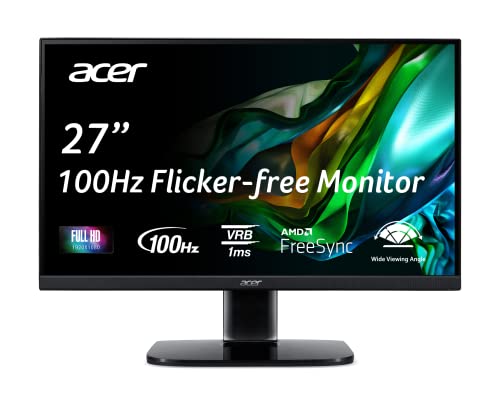
Acer 27-Inch 100Hz IPS Monitor
Best for: Legacy VGA or basic HDMI connections
- Connectivity
- HDMI, VGA (what this guide is about)
- Screen Size
- 27"
- Resolution
- 1920 x 1080
- Refresh Rate
- 100Hz
- Panel Type
- IPS
- Response Time
- 1ms VRB
View on Amazon: Acer 27-Inch 100Hz IPS Monitor Affiliate link
This 27-inch IPS monitor offers Full HD resolution with a 100Hz refresh rate and AMD FreeSync. Connectivity relies on HDMI 1.4 and VGA ports, making it suitable for older setups. The 1ms VRB response time helps with motion clarity. It includes ergonomic tilt and VESA mounting. This model fits users needing basic connectivity without modern digital inputs.
Pros
- 27-inch IPS panel with Full HD resolution
- 100Hz refresh rate via HDMI
- AMD FreeSync technology for reduced tearing
- 1ms VRB response time
- VESA 100x100mm mounting compliance
Cons
- Only HDMI 1.4 and VGA ports available
- Lacks DisplayPort or USB-C connectivity
- 250 nits brightness is lower than modern standards
Good fit if
- You need a VGA connection for legacy hardware
- You want a simple HDMI setup for basic use
- You prefer an IPS panel for viewing angles
Skip if
- You require DisplayPort for high-bandwidth signals
- You need USB-C for single-cable docking
- You want 4K resolution for detailed work
Verdict: Acer KB272 EBI 27-inch FHD Monitor serves users who rely on VGA or basic HDMI inputs. It is a practical option for legacy systems or simple office tasks where modern digital ports are unnecessary.

SANSUI 27-Inch 1440p 260Hz Fast IPS Monitor
Best for: high-refresh DisplayPort 1.4 PC gaming setups
- Connectivity
- DisplayPort (what this guide is about)
- Screen Size
- 27"
- Resolution
- 2560 x 1440P
- Refresh Rate
- 260Hz
- Panel Type
- Fast IPS
- Response Time
- MPRT 1ms
View on Amazon: SANSUI 27-Inch 1440p 260Hz Fast IPS Monitor Affiliate link
This 27-inch display pairs a 2560 x 1440 resolution with a 260Hz refresh rate across dual DisplayPort 1.4 inputs. You also get two HDMI 2.0 ports reaching up to 144Hz. It suits you if you need high-bandwidth DisplayPort connections for fast-paced gaming alongside standard HDMI inputs for secondary console or PC setups.
Pros
- Two DisplayPort 1.4 inputs supporting up to 260Hz at 1440p
- Fast IPS panel with 1ms MPRT response time
- 98% DCI-P3 and 130% sRGB color gamut coverage
- FreeSync Premium adaptive sync support
Cons
- HDMI 2.0 ports limit refresh rate output to 144Hz
- Stand adjustment is limited strictly to tilt
Good fit if
- You run games over DisplayPort 1.4 to hit the maximum 260Hz refresh rate.
- You connect multiple devices across two DisplayPort and two HDMI inputs.
Skip if
- You need higher than 144Hz refresh rates over an HDMI connection.
- You require ergonomic stand adjustments like height, pivot, or swivel.
Verdict: SANSUI 27-Inch 1440p 260Hz Fast IPS Monitor serves competitive PC players who connect via DisplayPort 1.4 to reach 260Hz at 1440p resolution.

ASUS ProArt 32-Inch 4K Mini-LED Monitor
Best for: Professional color grading and HDR content creation
- Connectivity
- HDMI, USB-C (what this guide is about)
- Screen Size
- 32"
- Resolution
- 4K
- Panel Type
- IPS
- Size
- 32 Inch
- Dimensions
- 28.6 × 18.5 × 9.45 inches
View on Amazon: ASUS ProArt 32-Inch 4K Mini-LED Monitor Affiliate link
This 32-inch 4K IPS monitor uses a 1,152-zone mini-LED backlight for high brightness and contrast. It offers robust connectivity with two Thunderbolt 3 USB-C ports, three HDMI 2.0b inputs, and one DisplayPort 1.2. The panel covers 99.5% Adobe RGB and supports multiple HDR formats. It is designed for color-critical work where accurate color reproduction and high dynamic range are essential.
Pros
- 1,152-zone mini-LED backlight with 1,200 cd/m2 peak brightness
- Two Thunderbolt 3 USB-C ports for data and video
- Three HDMI 2.0b inputs for multiple device connections
- 99.5% Adobe RGB and 99% DCI-P3 color coverage
- Delta-E <1 color accuracy with hardware calibration support
Cons
- Only one DisplayPort 1.2 input limits daisy-chaining options
- Heavy build at 32.3 pounds requires sturdy mounting
- Larger 32-inch size may not fit smaller desks
Good fit if
- You need Thunderbolt 3 connectivity for a single-cable setup
- You require high color accuracy for professional video or photo work
- You want high peak brightness for HDR content creation
Skip if
- You prefer a smaller 27-inch screen for limited desk space
- You need more than one DisplayPort for multi-monitor daisy chains
- You are looking for a lightweight monitor for easy relocation
Verdict: ASUS ProArt PA32UCX 32-inch Mini-LED suits professionals who prioritize color fidelity and Thunderbolt 3 connectivity over high refresh rates. It is a specialized tool for creative workflows rather than a general-purpose gaming display.
Specifications side by side
| Spec | Dell 27-Inch 240Hz IPS Gaming Monitor | Dell 27-Inch 4K 120Hz USB-C Monitor | Acer 27-Inch 100Hz IPS Monitor | SANSUI 27-Inch 1440p 260Hz Fast IPS Monitor | ASUS ProArt 32-Inch 4K Mini-LED Monitor |
|---|---|---|---|---|---|
| Screen Size | 27" | 27" | 27" | 27" | 32" |
| Resolution | 1920x1080 | 3840x2160 | 1920 x 1080 | 2560 x 1440P | 4K |
| Refresh Rate | 240Hz | 120Hz | 100Hz | 260Hz | not stated |
| Panel Type | Fast IPS | IPS | IPS | Fast IPS | IPS |
| Response Time | 0.5ms | 4ms | 1ms VRB | MPRT 1ms | not stated |
| Sync Technology | AMD FreeSync Premium | AMD FreeSync Premium | AMD FreeSync | FreeSync Premium | not stated |
| Connectivity | HDMI, DisplayPort 1.4 | USB-C, HDMI, DisplayPort | HDMI 1.4, VGA | 2 x Display Port 1.4, 2 x HDMI 2.0 | Thunderbolt 3 USB-C, HDMI, DisplayPort |
| Size | SE2725HG | S2725QC | 27 Inch | 27.01 | 32 Inch |
| Dimensions | 7.4 × 24.1 × 17.8 inches | 7.89 × 24.1 × 15.3 inches | 7.9 × 24.5 × 18 inches | 5.63 × 27 × 19.3 inches | 28.6 × 18.5 × 9.45 inches |
| Weight | 8.2 pounds | 14.8 pounds | 11.9 pounds | 11.2 pounds | 32.3 pounds |
| Color | Black | Ash White | Black | Black | BLACK |
| Model | SE2726HG | S2725QC | UM.HK2AA.E02 | ESA-G27F6Q PRO | PA32UCX-PK |
Frequently asked questions
Which ultrawide monitor has USB-C connectivity?
The Dell S2725QC and the ASUS ProArt PA32UCX both feature USB-C ports. These connections allow you to link your laptop with a single cable. This setup simplifies your desk by handling video and data simultaneously. The Dell model is ideal for productivity, while the ASUS supports professional color grading workflows.
Does the Dell SE2726HG support USB-C?
No, the Dell SE2726HG does not include USB-C connectivity. It relies on DisplayPort and HDMI inputs instead. This design focuses on speed and response time for competitive gaming. You will need separate cables for video and power if you use a laptop with this display.
Can I connect an old PC to an ultrawide monitor?
Yes, if the monitor includes a VGA port. The Acer KB272 EBI supports legacy VGA connections alongside HDMI. This allows you to use older computers that lack digital outputs. It is a practical choice for basic office tasks or legacy systems where modern ports are unnecessary.
What ports does the SANSUI ESA-G27F6Q PRO have?
The SANSUI ESA-G27F6Q PRO offers DisplayPort connectivity. It does not include USB-C or VGA ports. This configuration supports high refresh rates for gaming. You will need a DisplayPort cable to connect your source device for optimal performance.
Is HDMI better than DisplayPort for gaming?
DisplayPort generally supports higher refresh rates and variable sync technologies more reliably. The Dell SE2726HG and SANSUI ESA-G27F6Q PRO use DisplayPort for their high-speed performance. HDMI is also present on many models like the Acer KB272 EBI. Choose based on your source device capabilities.
Which monitor is best for Thunderbolt 3?
The ASUS ProArt PA32UCX is the best choice for Thunderbolt 3 connectivity. It supports specialized workflows for creative professionals. This connection ensures high data transfer rates and video signal quality. It is designed for color grading rather than general gaming or office use.